“A faster network connection means nothing if the network delivering it is struggling to keep up.”
Have you ever found yourself staring at a buffering wheel while watching your favorite show, even when you have paid for a high-speed internet plan? Well, it is a frustrating paradox. It feels like having the pipes, but the water is barely trickling through.
Understanding your Wi-Fi is not just about the megabits you pay for; it is about the invisible hurdles that are scattered throughout your home.
Key Takeaways
- Central and elevated placement eliminates most dead zones.
- Your router is often more important than the speed of your ISP.
- You can use the 5GHz or 6GHz bands to avoid any interference from household appliances.
A fast plan does not necessarily mean speed; Wi-Fi radio waves are fickle. Your internet plan promises the ideal speed, but inside your home, interference and distance actually rewrite the rules.
Stuttering connections usually signal local bottlenecks instead of a lack of power from your provider. To truly master your home setup, you must look beyond the service plan and have a look at the hardware mechanics.
Did You Know?
The first Wi-Fi technology was partially derived from a failed experiment which involves black hole research.
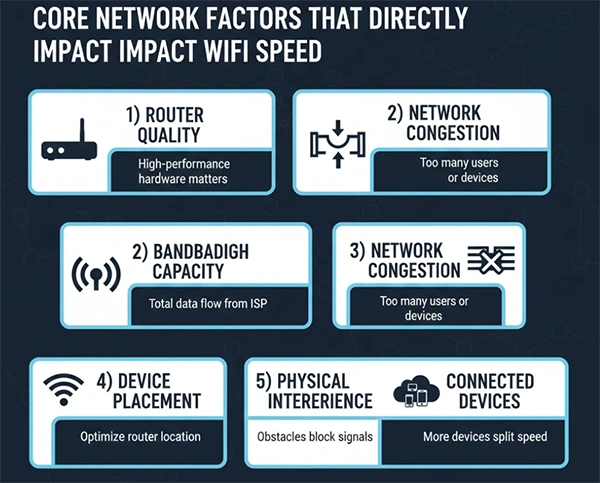
Each component in your home network acts as a link in a chain. If one link gets weak, the entire connection faces the consequences.
The router is the brain of your operation, and old hardware simply cannot keep up with modern data demands. While top-tier enterprise fibers are pushing towards 100 gigabits, your aging home router might struggle to even distribute a fraction of that. Upgrading to Wi-Fi 6 or 6E can significantly widen your data lanes.
Imagine the bandwidth as a highway; the more lanes there are, the more cars can travel at once. At times when you are playing a game or streaming 4K, you need high throughput and low latency, or a jitter of over 150 ms. can make even a high-bandwidth connection feel unusable for real-time tasks.
If you live in an apartment, you are not just using Wi-Fi; you are in a constant struggle with your neighbors for airwaves. Overlapping channels create noise that drowns out your signal.
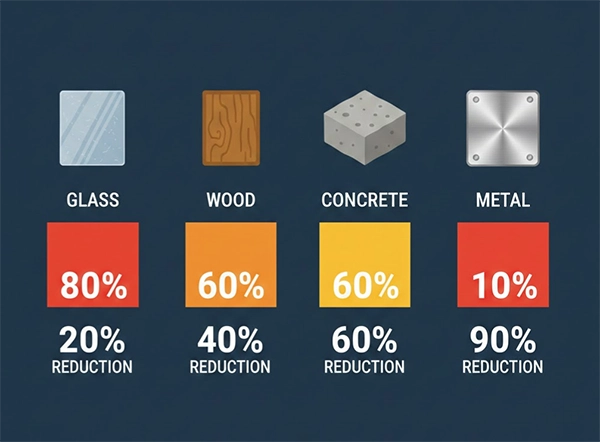
Where you place the device is a major factor, as walls are the enemy of speed. Thick or brick can cut signal strength by up to 90%, which leaves you with dead zones in the back rooms. Elevating your router and keeping it central will provide you with a better signal and connection.
Fun Fact: Your fish tank can actually block your Wi-Fi because water is highly effective at absorbing radio waves.
For a stable connection, you should go with at least a 20 db SNR (Signal-to-Noise Ratio) to ensure that your data does not get suppressed by household electronics.
Every smart bulb, tablet, and fridge chips away at your total capacity. Even idle devices consume airtime, which slows down the gadgets you are actually using. If you want to secure your traffic without adding too much overhead, all you need to do is use a good VPN that can protect your data. However, it will require a router with enough processing power to handle the encryption.
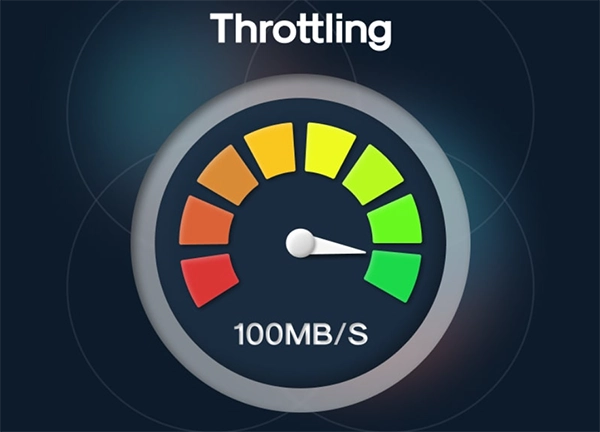
Sometimes, the call is coming from inside the house, but at times, the ISP is the real culprit. ‘Throttling’ is a common practice where providers slow down specific types of traffic during peak hours. If your speed drops every time at 6 PM, it is possible that the local node is oversubscribed.
Before you buy a new router, you should first test your speed through an Ethernet cable. If the wired speed is perfect but your Wi-Fi is slow, the issue is with your wireless environment. If both are slow, the problem can be with your modem or the ISP’s line.
A fast internet plan is only the beginning line. To win the race against buffering, you need to optimize your router’s health, stay mindful of the interferences, and also manage your environment.
By taking care of these bottlenecks, you can avoid digital crawl and transform your home into a high-speed sanctuary.
To restart the connections and clear the cache, you need to restart the router once a month.
Generally, VPN can slow down Wi-Fi; however, if your VPN is of high-quality on a powerful router, the disturbance would be less.
This could be because of physical interference or distance. Mirrors and walls reflect and absorb signals.