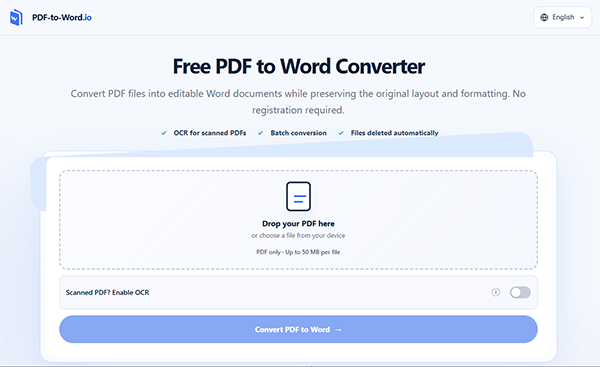
Have you noticed how you open a PDF to correct a sentence and discover that nothing can be edited? Sometimes you can only select the text, but changing it is not possible. But in other cases, every page is simply an image created by a scanner. A browser-based PDF to Word converter can turn many of these files into editable DOCX documents. PDF-to-Word.io often manages regular PDFs without OCR and allows OCR to be enabled for scanned files.
The correct approach is actually selecting the page you want to edit, then identifying whether the document contains selectable text, scanned page images, password restrictions, or a damaged file structure.
PDF was designed to save a page’s appearance across devices and operating systems. Its content does not always act like the paragraphs, headings, and tables found in a Word document.
PDFs can be hard to edit for different reasons. Some contain selectable text that is easier to revise in Word; others are scans that need OCR. A separate case involves permission restrictions, which should be managed by requesting access from the file owner.
Try dragging the cursor over one sentence. If individual words become selectable, the document probably contains a text layer.
You may be able to copy the text, but editing it directly often requires a PDF editor. Converting the document to DOCX is more practical when you want to rewrite several sections, apply comments, or substantially update the layout.
If choosing an area highlights the entire page, the PDF is probably composed of images. This often happens with:
A scanned PDF requires optical character recognition before its text can become editable. OCR examines the page image and attempts to verify letters, numbers, and punctuation.
Some PDFs allow viewing while limiting copying, printing, or editing. A conversion tool should not be used to bypass access controls.
If you own the document or have permission to change it, request the password or an unrestricted copy from the file owner. Workplace files should be managed according to the organisation’s document-security policy.
Missing pages, blank areas, repeated error messages, or a file that fails to open consistently may show corruption. Try opening it in another trusted PDF reader and get a new copy from the original source when possible.
Conversion cannot reliably reconstruct information that is already gone or damaged in the source file.
A PDF with selectable text offers the most straightforward conversion.
Open multiple pages and confirm that:
Keep the original PDF. It will be required when checking the resulting DOCX.
Upload the PDF to PDF-to-Word.io. For a normal text-based document, OCR is not important. Start the conversion and download the DOCX when processing is finished.
Give the converted file a new name rather than replacing the source. For example:
Lease_Agreement_Original.pdf
Lease_Agreement_Editable_v1.docx
Open the PDF and Word document simultaneously. Confirm that all pages and content are present, then use the review section below to verify reading order, layout, and content that could affect meaning.
The goal is to create a dependable editable version. The DOCX does not need to match every visual detail when those details do not influence readability or meaning.
Scanned documents need an extra recognition stage. Using an OCR PDF to Word workflow allows the page images to be analysed and transferred into an editable DOCX file.
Zoom into the page before conversion. OCR is more probably to produce usable text when the scan is:
If the scan is cropped, blurred, or photographed at a steep angle, rescanning the document may save more time than correcting extensive OCR errors after.
Upload the scanned PDF and switch on the OCR option. The tool will attempt to identify the text and retain the document’s content and layout in the DOCX output.
OCR quality relies on the source. Small type, decorative fonts, multi-column pages, faded printing, and text over patterned backgrounds may need more correction.
Compare the recognised text with the scanned pages. OCR can misread characters or delete content even when the layout looks convincing. Use the shared review section below to check high-risk text, including handwritten notes, against the original image. Do not expect that OCR has recognised them.
Use the original PDF as the reference for both conversion workflows. Verify the document in this order:
Before utilizing or sharing the document, compare high-risk content with the source: amounts, dates, measurements, formulas, footnotes, special characters, and handwritten notes. Mark unclear source material for further review rather than guessing.
Making a PDF editable text includes more than producing a DOCX file. The converted document must still represent similar information as the source.
Identify the type of PDF, choose the appropriate conversion method, and keep the original open during review. PDF-to-Word.io can create the editable beginning point, while careful checking turns that output into a Word document suitable for revision, collaboration or reuse.
Yes. Enable OCR when processing an image-based or scanned PDF. Recognition quality depends on the clarity and structure of the original pages, so the result must be checked.
Selectable text means the PDF has a text layer. It does not mean the file is structured like a Word document. Converting it to DOCX can offer an editable working version.
If the file has restrictions, obtain permission and the right password from its owner. Do not use conversion to bypass access controls.
PDF-to-Word.io attempts to preserve the original content and layout, but exact reproduction cannot be guaranteed. Tables, unusual fonts, multiple columns, and scanned pages may need manual repair.
Check numbers, amounts, dates, tables, formulas, headers, footers, footnotes, special characters, blurred areas, and handwritten notes against the original.