How to Trim a Video with VLC on Windows & macOS?

| Updated on March 19, 2026

Many beginners who are learning new software find out how to trim a video with VLC a bit tricky at first in their initial experiences. However, you can easily learn to trim video in VLC without any complex procedures, as it provides some crucial benefits like advanced controls and file compression, which give smoothness to your editing journey. Through this GetAssist article, you will learn to edit videos with VLC in simple ways.

How to Trim a Video with VLC on Windows?

To trim video using VLC or to perform video compression on your Windows desktop or laptop, you need to follow some steps to get it done quickly and without any complicated errors. Let’s take a look at them. 
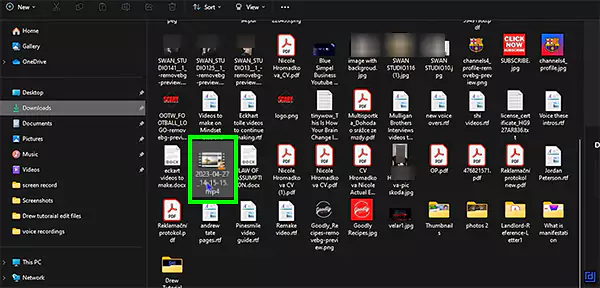
  • Select the video and open it through the VLC media player.  
    Select any video and play it via VLC media player
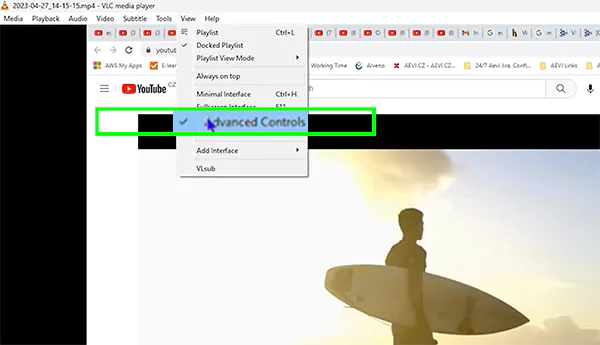
  • Click on the View >> Advanced Controls
    Click on Advanced Options
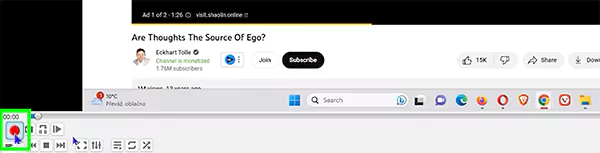
  • Now click on the red button.
    click on the red button
  • Hit the play button 
    Click on the play button
  • Press the red button again when you reach your desired trimming part.
    Press the red button again when you reach the desired trimming part
  • Click on the files option. 
    Click on the files option
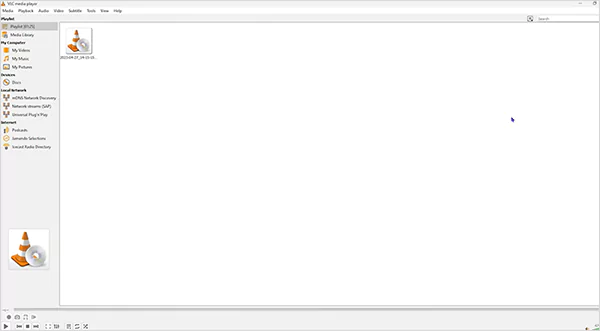
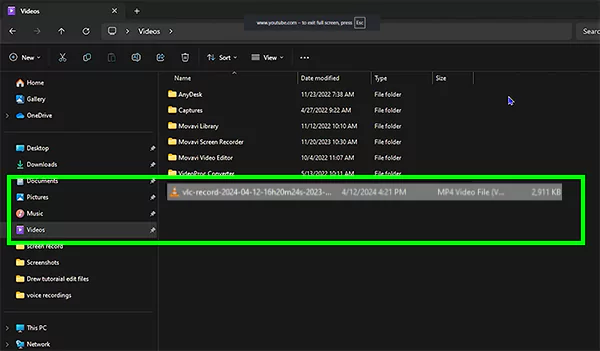
  • Now, you can view your files in both the VLC software and the Windows drive at the same time.
    Saved video file in the VLC software and the Windows drive
    Saved video file in the VLC software and the Windows drives

How to Trim a Video with VLC on macOS?

As we saw in the Windows tutorial above, the macOS version is a bit different and easier compared to it because you can cut a video from VLC in fewer steps. Let’s see how to trim a video in VLC on your MacBook or Mac system.
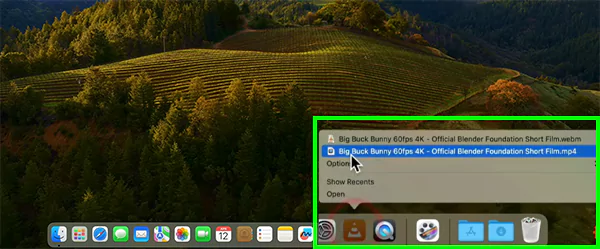
  • Open the video through the shortcut. 
    Open any video of your choice through the shortcut
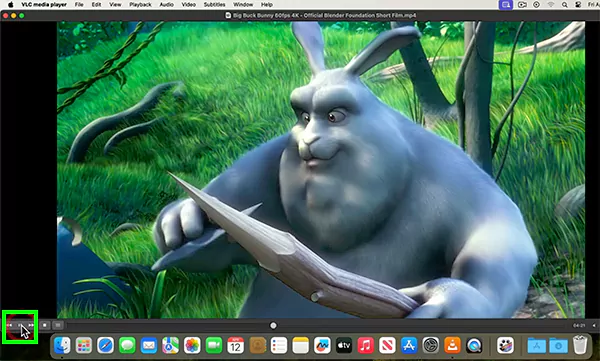
  • Next, play the video. 
    Play the video
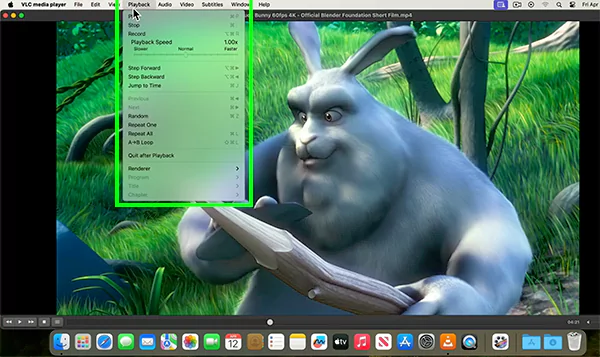
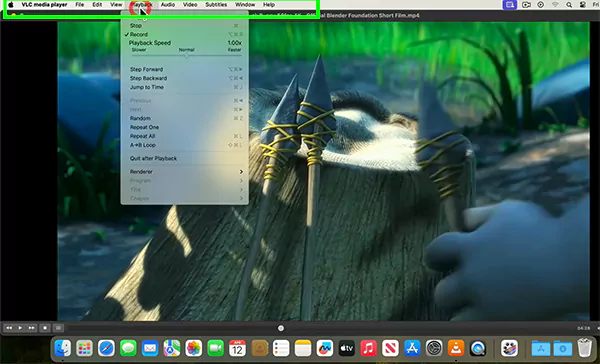
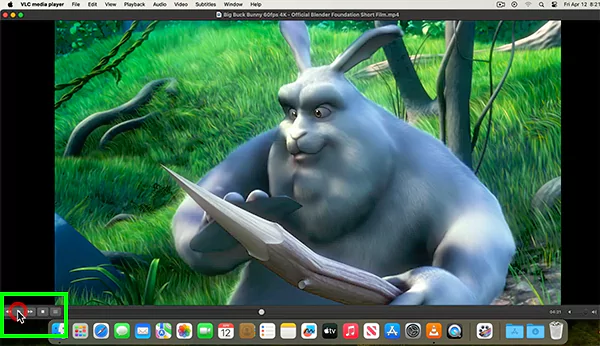
  • Click on the Playback option. 
    Click on the Playback option
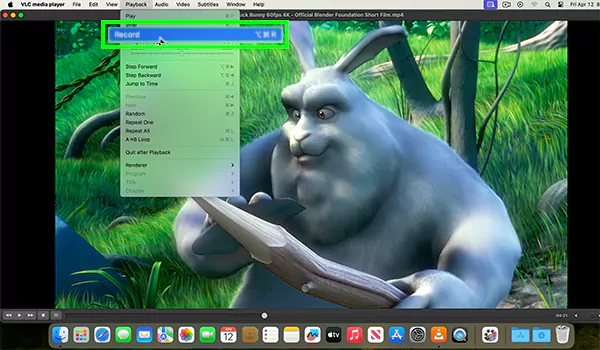
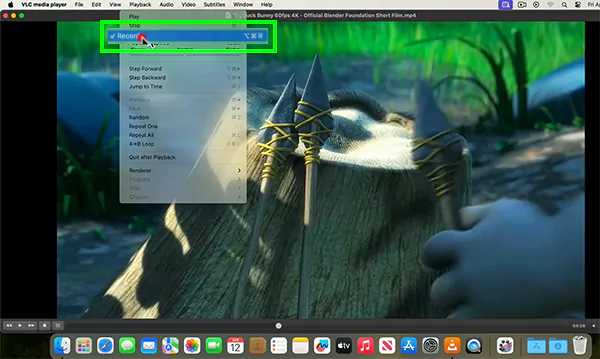
  • Hit the Record option. 
    Click on the Record option
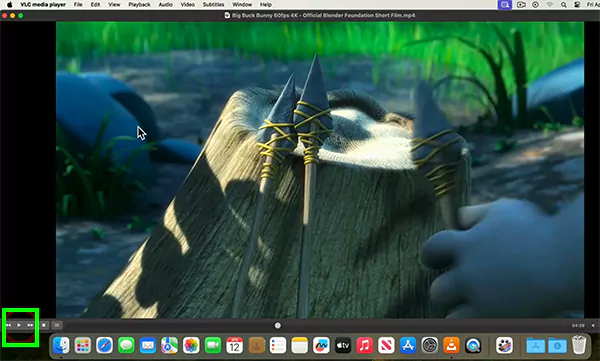
  • Now, play the video again. 
    Play the video again
  • Pause the video after reaching your desired point. 
    Pause the video
  • Now, click on Playback again. 
    Click on Playback again
  • Hit the record again. 
    Click on record again
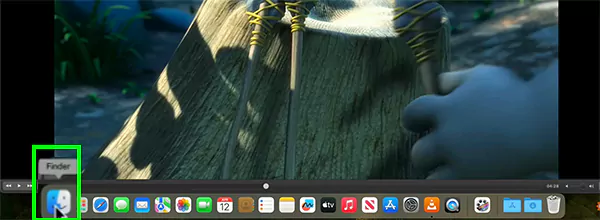
  • After this, your recording of the trim will be saved, and to view it, open Finder. 
    open Finder to see your trimmed part
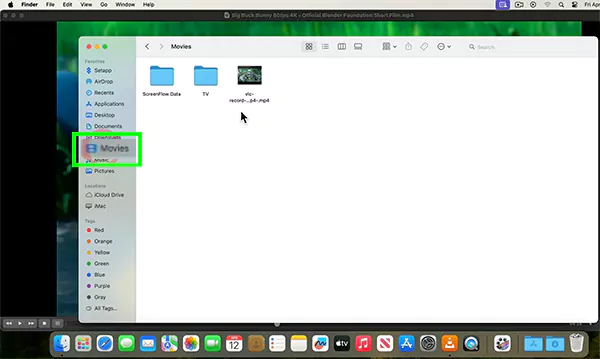
  • Then, go to the Movies folder. 
    Click on the Movies folder
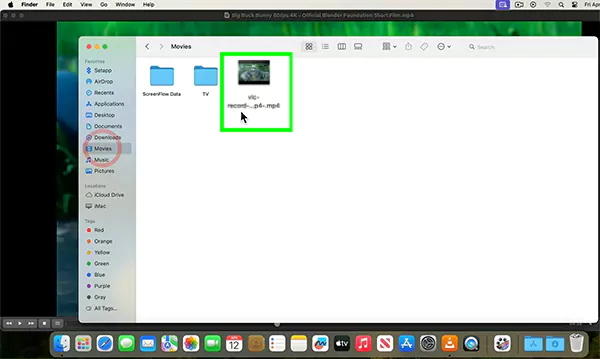
  • Now you can see your video in the Movies section of the Finder. 
    You can see your video in the Movies section of the Finder

If you want to find more such elaborate tutorials and the latest tech updates, subscribe to the GetAssist YouTube channel and click the bell icon for the fastest notifications. 

Why Am I Not Able to Trim a Video With VLC?

Well, if you are not able to trim a video with VLC, there is a possibility that it is one of those common reasons that millions of users face, which include: 

  • Loop Enabled: When the video is in the loop format, and subtitles are displayed in the movies, there is a chance that some options may fail. Disable that option before doing anything.
  • Inappropriate Format or Codec: This software can be disrupted by some extensive formats or underperform in extremely high-quality videos for low-end PC users.
  • Doing Overediting: VLC is not designed for complex, precise editing. It is meant for simple, quick, real-time segment recording.
  • Untraceable file location: Sometimes it doesn’t find the precise location of your files.

How to fix them? 

  • Make sure to save your files in the precise locations. 
  • Disable the loop option. 
  • Accelerate your hardware and software by doing routine maintenance. 
  • Use the “Frame by Frame” options to cut/trim the videos to avoid sound and image delays. 

Final Thoughts 

Lastly, the answer to your query How to trim a video with VLC? It is not a complicated job; rather, it is the easiest way to cut parts from your uploaded content using its advanced options and adaptable user interface. 

If you have some issues or common errors, they can also be easily fixed by making some minor changes. For more such elaborative content, make sure to follow GetAssist and also subscribe to its YouTube channel for amazing content.

FAQ

Is it possible to crop a video in VLC?

Yes, it is absolutely possible to crop a video in VLC using its presets or manual adjustments.

Does trimming a video reduce file size?

Yes, trimming unnecessary parts of the video reduces the file size of the uploaded media.

Why do people still use VLC?

Because it helps to stream on YouTube and does help in minor editing.

Sources

How to trim a video in VLC  by VideoLAN Forums


Janvi Verma

Tech and Internet Content Writer


Related Posts

×