It’s literally hard to imagine my day without streaming YouTube on my phone. From catching up on news shorts to being curious to check whether your favorite vloggers uploaded a new YouTube video, it seriously helps keep my mood lifted.
But not every day is the same, and today I faced the black screen issue on YouTube. The good part is that it got resolved after trying some easy fixes on my own.
If you’re in the same boat, I’ve mentioned some tried-and-tested solutions that can fix the YouTube black screen issue like magic.
A black screen on YouTube might seem frustrating, but knowing the usual reasons behind this issue can help you troubleshoot it more frequently on your device.
When you attempt to view a YouTube video, a black screen might occur due to a slow internet connection. This issue could be from your Internet Service Provider’s side, or it might be a fault in your WiFi router and wiring connection.
The browser you are using to watch YouTube videos might contain a stale DNS cache and cookies and may fail to load the new website or play the new video, displaying a Black screen in this case.
If you are using Google Chrome for using YouTube, then the extensions and plug-ins you have installed on the browser for work or personal use might disrupt the loading of your videos, resulting in a YouTube Black Screen.
A black screen on YouTube videos can be experienced if your device is running outdated software. Inversely, the YouTube lagging issue can also occur if your YouTube application is not updated to the latest version.
Check out the 7 tried and tested troubleshooting fixes that helped me resolve my YouTube black screen issues in literally seconds.
If you are experiencing a YouTube black screen on videos, then the first thing to check is the internet connection. The black screen or difficulty in loading videos appears due to an unstable or no internet connection.
Try switching on the wired network, or reset the router to restart the device. Practice refreshing your browser and playing the video on YouTube again to see if the issue is resolved. Under some uncertain circumstances, if this doesn’t work, contact your ISP to get better assistance.
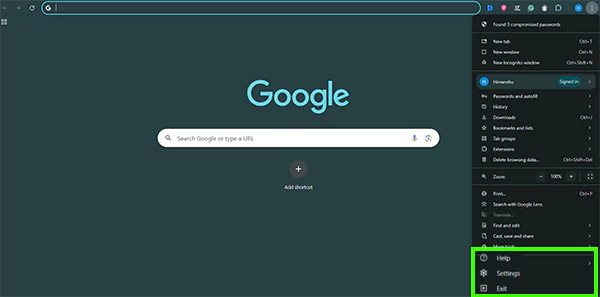
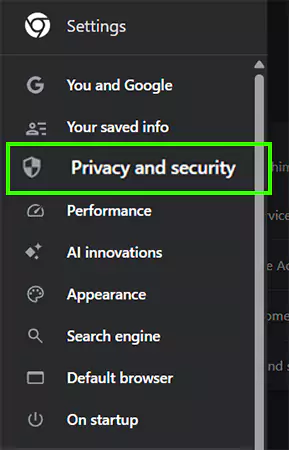
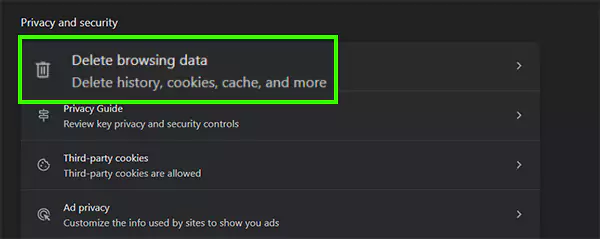
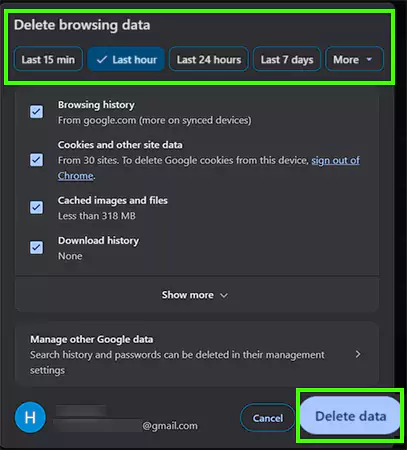
The second solution to fix the black screen in YouTube videos is to clear the browser’s cache and cookies. Clearing out the stored DNS can clear the pathway and conflicts that are restricting you from a smooth video playback.
To clear the cache and cookies of Google Chrome, you should perform the easy step mentioned below:
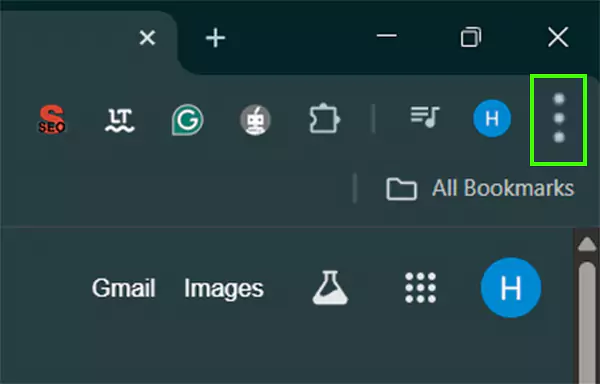
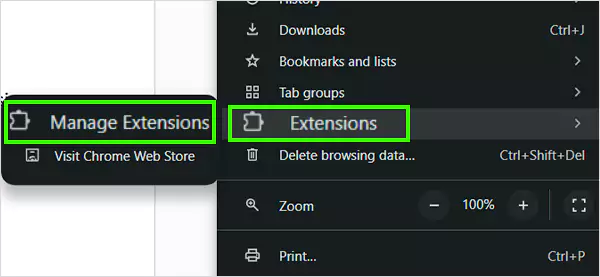
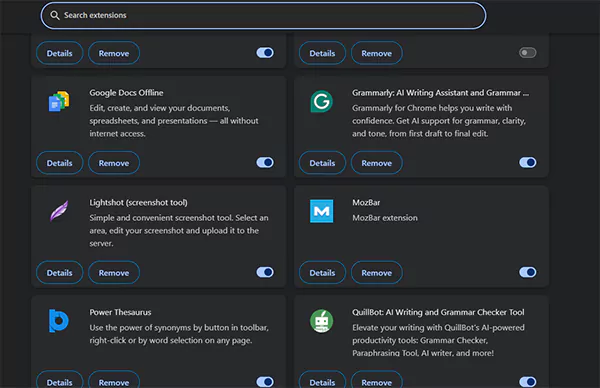
AdBlockers and extensions are used to enrich your routine tasks’ performance, but may not come in handy while watching YouTube videos, resulting in a black screen. So, to not interrupt your entertainment experience, practice disabling the extensions that you don’t use frequently and again download them when you prefer to employ them in your work.
Check out the easy steps mentioned below to remove the problematic extensions:
In the race of blaming YouTube for the Black screen issue, you might miss out on the real culprit, which is Chrome or other brower you are currently using. So, swap the browser and attempt to play your YouTube video.
If this hack works for you, then there might be some issues with the dedicated browser you were using before.
An old and outdated browser can be the reason behind the black screen in YouTube videos. So it’s high time to update the browser. Check out the below to update the browser.
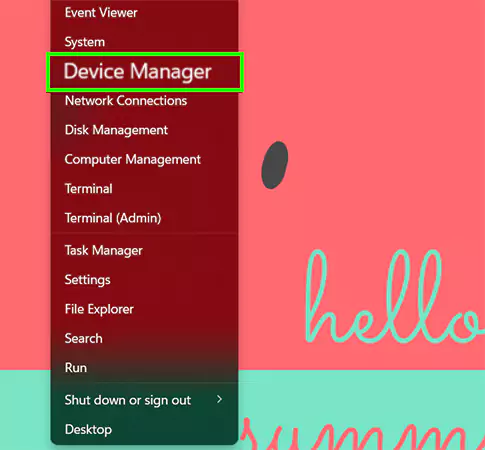
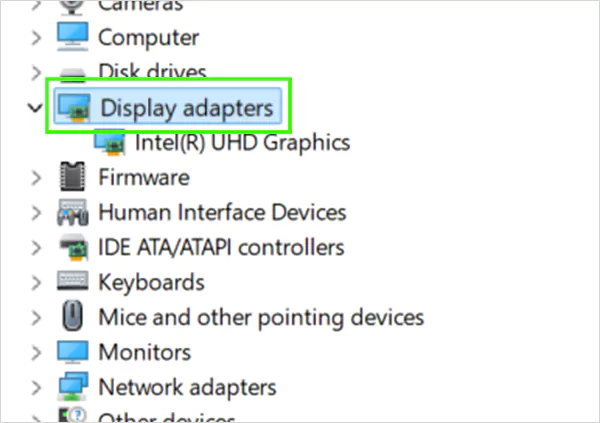
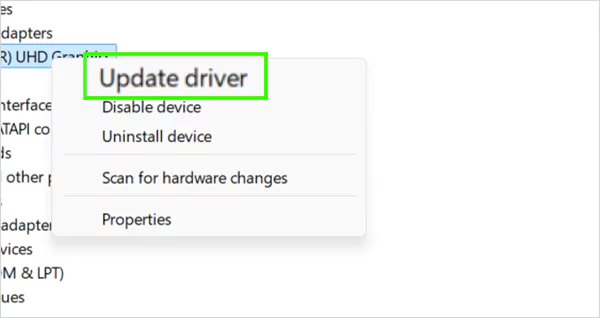
If this works for you, then resume with your binge watching; if not, you have more fixes to go!
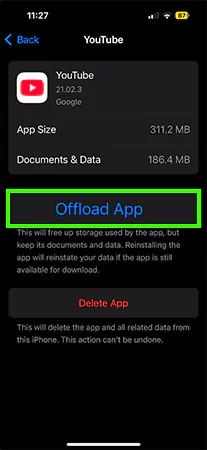
Sometimes, the app cache and cookies might interrupt your video playing experience. So, attempt to reinstall the app. Other than that, you can also log out and re-login with a different account to investigate whether there are any account bans or takedowns you might not have noticed.
The internal issues and device incompatibility can be one of the prime reasons that can result in the black screen for YouTube videos. So, last but not least, perform a shutdown or restart. Restarting your computer shuts it down and boots it back from scratch.
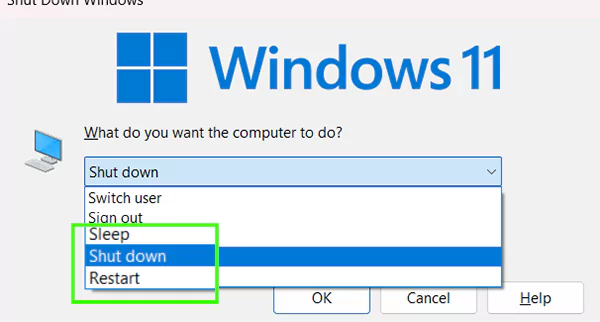
As listed in the above image, choose Shut down or Restart and check whether everything has got back to normal or not.
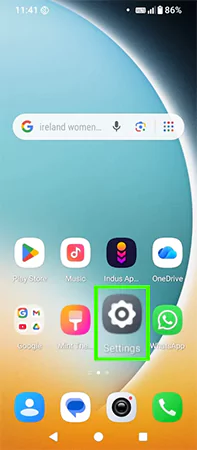
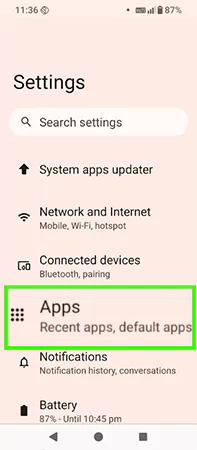
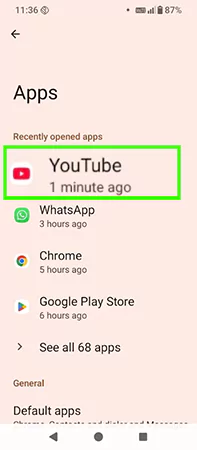
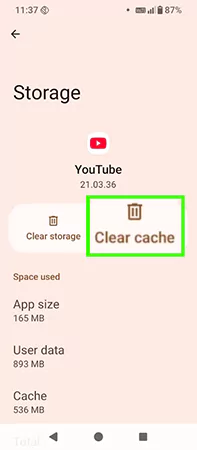
Its time to address if you are facing the same black screen YouTube issues on your phones. As my experience, I use YouTube more on my mobile phone than my laptop, and faced this issue here only, and you won’t believe it just sorted out in seconds!
For Android
For iOS
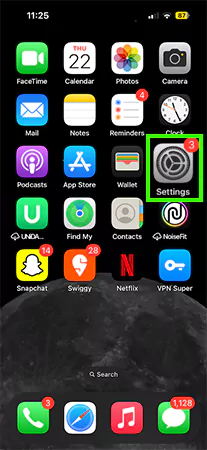
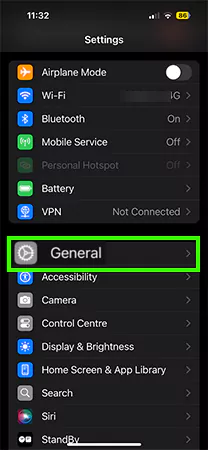
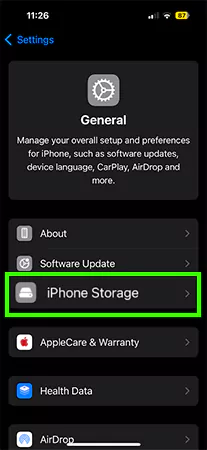
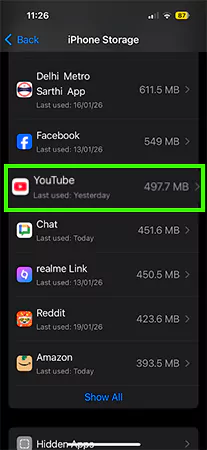
The YouTube black screen issue is quite common, and its causes can range from temporary cache glitches and outdated software to browser or device-related problems. Fortunately, the troubleshooting fixes mentioned above can restore your YouTube videos in seconds, and trust me, no advanced technical knowledge is required.
If you prefer clear, expert-led, step-by-step guidance, the GetAssist YouTube channel offers practical video walkthroughs to help you quickly diagnose and fix YouTube playback or any such issues with ease.
Yes, clearing the cache fixes a YouTube black screen most of the time, as the temporary cookies and cache can disrupt the playback.
No, clearing the cache will not delete the YouTube downloads and other personal data.
The reason behind the black screen includes software driver issues, hardware problems, corrupted cache and cookies, unstable internet connection, and more.
Yes, a virus or malware can disrupt the functioning of the hardware and cause a black screen.