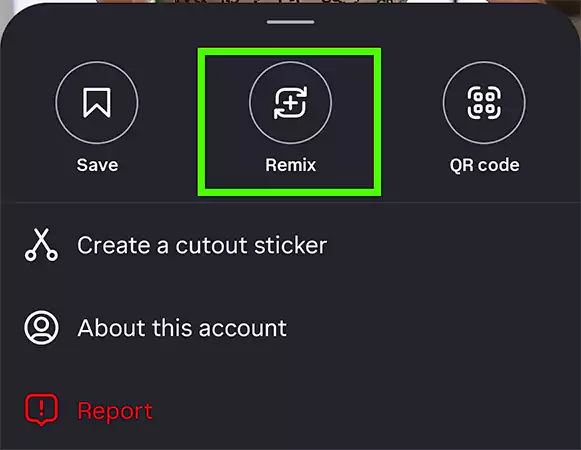
You can not proceed without adding a clip, sticker, or text in the reel
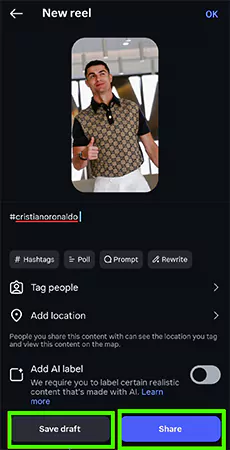
Prepare the Reel (write caption, add hashtags, location, tags, etc).
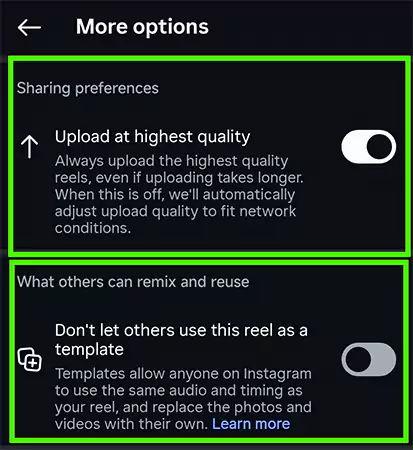
You can also prevent others from remixing by enabling “Don’t let others use this reel as a template” from the “More Options” at the bottom.
Pro Tip: Toggle on “Upload at highest Quality” from “More Options” to repost at the best quality.
Lastly, tap “Save Draft” to save it as a draft or hit the “Share” button to repost the reel on your IG profile.
Via Screenshot (Manual)
First, take a screenshot of the post that you want to repost and edit it as you like. Tap the “Plus” icon located in the top-left corner.
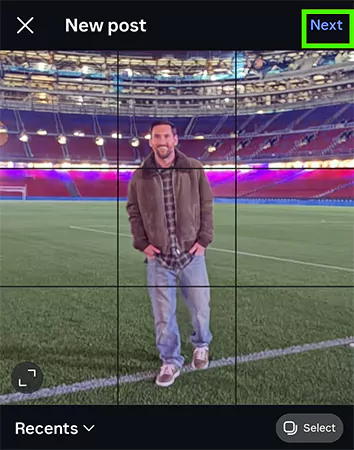
Now, tap “Post”, select the screenshot, and press “Next” on the top right corner.
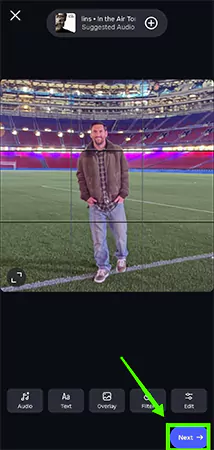
Customize the Post (add audio, filter, overlay, etc) as per your preference, and tap “Next”.
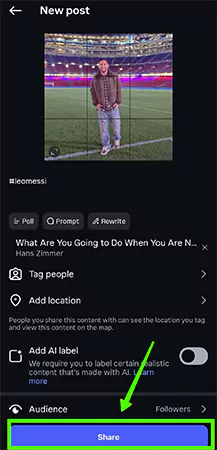
Finally, mention the original creator in the caption or tag him/her. Finalize the post, and tap “Share” to repost.
Fun Fact:You can also repost any post/reel directly on your Instagram profile by tapping on the “Repost” button below the post. Also, from your profile, you manage your reposted posts/reels.
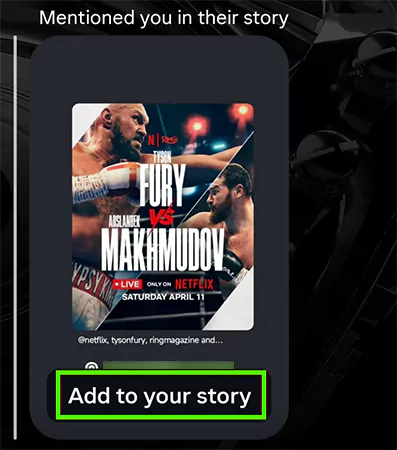
Go to your Insta DM and tap on the chat with “@mentioned you in a story” message.
Now, tap “Add to Your Story”.
Lastly, modify the story (text, music, stickers, mentions, etc) and click the “blue arrow” button or “Your Story” button at the bottom.
And that’s how you can repost a story on IG.
If you’re not tagged in a story that you want to repost on Instagram, follow the reposting via screenshot method mentioned above. Hence, check out solutions to more such queries on the Getassist YouTube channel.
FAQ
Can I repost on Instagram from Desktop?
Yes, you can repost posts/reels on your Instagram account only via the screenshot method.
How to repost someone’s story on Instagram if you’re not tagged in?
Here’s how you can repost someone’s story on your Instagram account:
Take a screenshot of the story >> add it as your new story >> mention their account, and you have successfully resposted someone’s story.
Why can’t I repost on Instagram anymore?
There are a few reasons why you can’t repost on Instagram anymore:
Content Creator Disabled Remix
Outdated App Version
Private Account
App Glitch/Bug
Cookies/Cache Buildup
Sharing Feature Restricted Due to Violation of Community Guidelines.