YouTube Live Stream is an amazing feature for creators, not just to interact with their audience, but it also unlocks a new and booming niche called “IRL” that can significantly quantify subscribers and reach.
So, if you’re a creator or on a journey to become a YouTuber and want to learn how to go live on YouTube, this simple guide will act as your YouTube live streaming GPS.
How to Go Live on YouTube?
There are two streaming methods that you can use to go live on YouTube: PC and Smartphone method. Take a detailed look below:
PC with Webcam and Microphone (Simple Vlogs, Q&As)
Smartphone (Easy Vlogging, Quick Updates)
How Do You Go Live On Youtube From the YouTube Website?
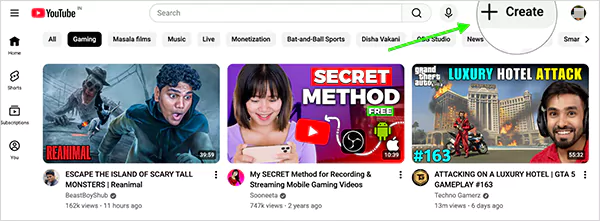
Go to YouTube.com, log in, and click the “ + Create” button in the top-right corner.
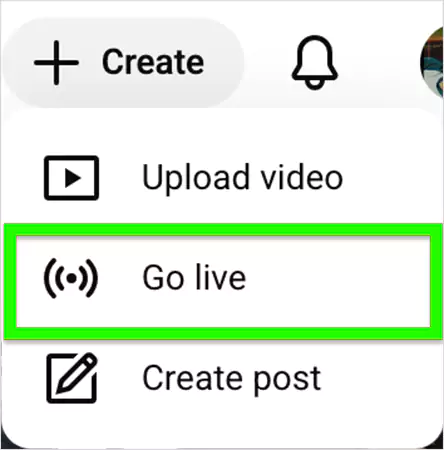
Now, hit “Go live” to open the “YouTube Live Dashboard” of your YouTube Channel.
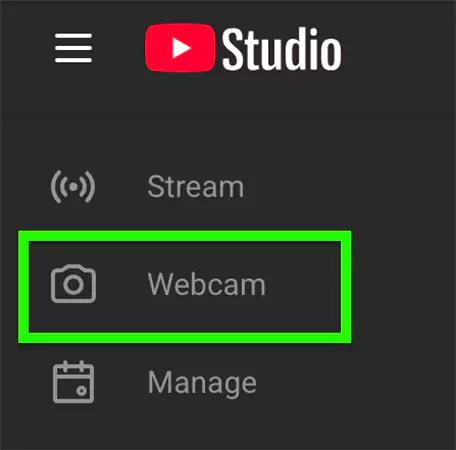
Next, click “Webcam” from the top-left side options.
Insert the following details of your live stream:
Video title and description.
Set the privacy (Public, Private, or unlisted).
Select if it’s “Made for Kids.
Press “Next” to insert the thumbnail photo for your YouTube Live Stream.
Finally, cross-check your camera and microphone settings, and hit “Go Live”.
How To Livestream On Youtube Via the YouTube App ?
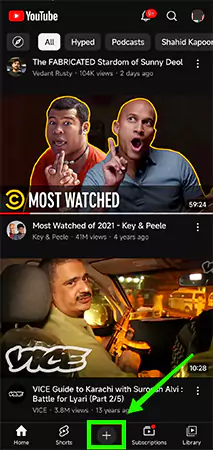
Launch the YouTube App on your device, tap the “+ (Plus)” button at the bottom centre.
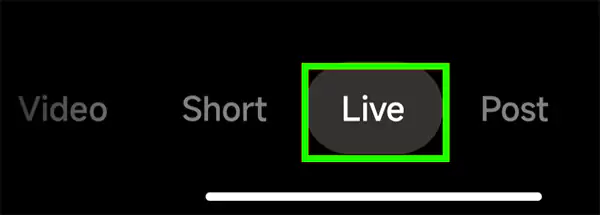
Next, select “Live” from the different options.
Fill in the required details of your live stream, such as title, description, privacy, Made for Kids, etc.
Hit “Next” to add a thumbnail photo for your first YouTube Stream.
Lastly, tap “Go Live” to start the live.
And that’s how you can go live on YouTube using your PC and Phone. Additionally, if you want to learn how you can step up OBS Studio for gaming, you can check out the GetAssist YouTube Channelfor quick solutions.
Pro-Tip:Always focus on creating quality content for your core audience, and who knows you video might land on the list of most-viewed YouTube videos.
YouTube Live Stream Requirements
Yes, there are some mandatory YouTube Live Stream requirements that you have to satisfy to start a YouTube Live Stream.
Here are the prerequisites for unlocking the YouTube live streaming feature on your YouTube Channel:
Age Requirement: To enable live streaming, the minimum age requirement is 16 years old. So, you must be at least sixteen years old to live stream.
50 Subscribers Threshold: YouTube live streaming guidelines mandate a minimum of 50 YouTube Subscribers on your channel to unlock the live streaming feature.
YouTube Community Guidelines Compliance: If your channel has live streaming restrictions, such as Community Guidelines strikes in the last 90 days, you will be restricted from streaming live on YouTube.
Verify YouTube Channel: Your YouTube channel needs to be verified by YouTube. Validate your phone number by going to YouTube.com/verfify and register your channel.
24-Hour Request: Before your first live stream, you have to request access to live streaming, and it will take 24 hours waiting time to unlock.
Now that you have configured your YouTube channel to live stream on YouTube, let’s see how you can actually go live using your PC and phone.
FAQ
Can I live-stream YouTube videos on X?
Yes, you can live-stream your YouTube videos on X. Of course, not directly, but through an encoder like OBS Studio.
How to monetize YouTube Live Streams?
To monetize your YouTube live streams, you need to have 1000 subscribers, including 4000 watch hours (past year) or 10M Shorts views (past 90 days). This will also get your YouTube Videos Monetized.
Which is the best software to stream gaming on YouTube?
OBS Studio is considered the best and industry-standard software for gaming, as it enables you to overlay a webcam onto your gameplay.