GIFs in the comment section of the post on Instagram are perhaps the most fun, amusing, and quick creative expression right now on Instagram.
One funny, quirky, or relevant GIF = Thousands of likes and replies.
So, if you’re wondering how to comment a GIF on Instagram, then you must check out this quick & fun guide (like an interesting GIF) created by GetAssist.
How to Comment a GIF on Instagram Posts/Reels?
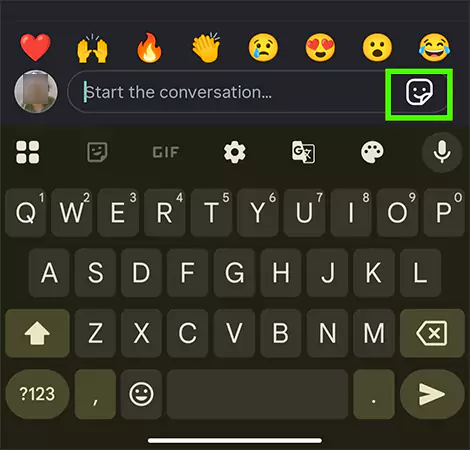
Commenting a GIF on Instagram Posts/Reels is pretty straightforward. Simply follow the three simple steps listed below, and you’re good to go to share your funny or quirky side on IG.
Notes
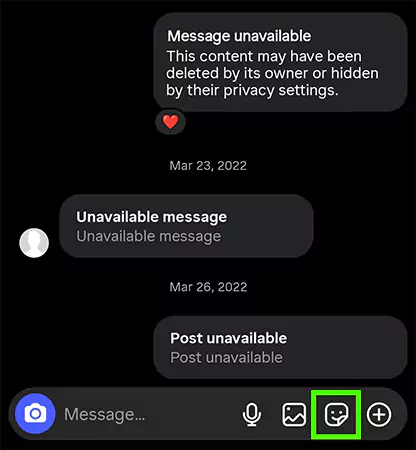
You can only comment, send, or post GIF respectively on Instagram Posts/Reels, Messages, and Stories using the Instagram App. On desktop, Instagram allows sharing GIFs only in personal messages.
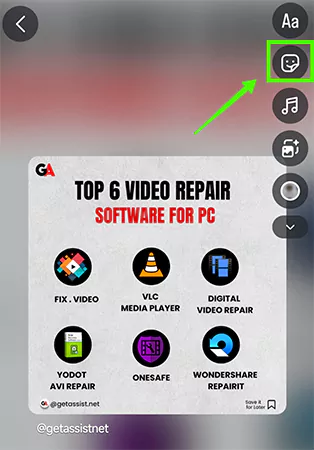
First, choose any Image/Clip/Post/Reel to feature on your Insta story.
Once it’s added to your story, tap the “Sticker/Smiley Face” icon on the top-right.
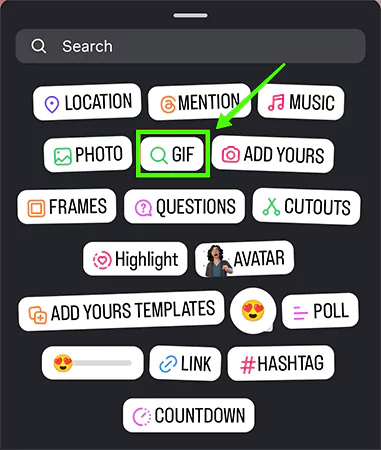
Next, press the “GIF” bar.
Lastly, choose any trending GIF or search specific GIF that you want to add to your IG Story.
By following the above-cited easy steps, you can effortlessly add GIFS in IG stories, and for more interesting Instagram tips, tricks, and tutorials, you must visit the GetAssist YouTube Channel.
FAQ
How to upload GIFs on Instagram?
You can’t create or upload GIFs on Instagram directly. However, you can use the following methods to add GIFs to Instagram:
Convert GIF to MP4 (Ideal for Feed/Reels).
Use GIPHY (Best for Stories)
Add Custom GIFs to Stories (For Creators)
Can you respond to an Instagram Comment with a GIF?
Yes, you can respond to an Instagram comment with a GIF.
Tap “Reply” below the comment that you want to reply to.
Clear the “Username” and Tap “Sticker” icon.
Choose or search for any GIF you wish to.
Why can’t I post a GIF on Instagram?
There are various reasons why you can’t post a GIF on Instagram, such as: